
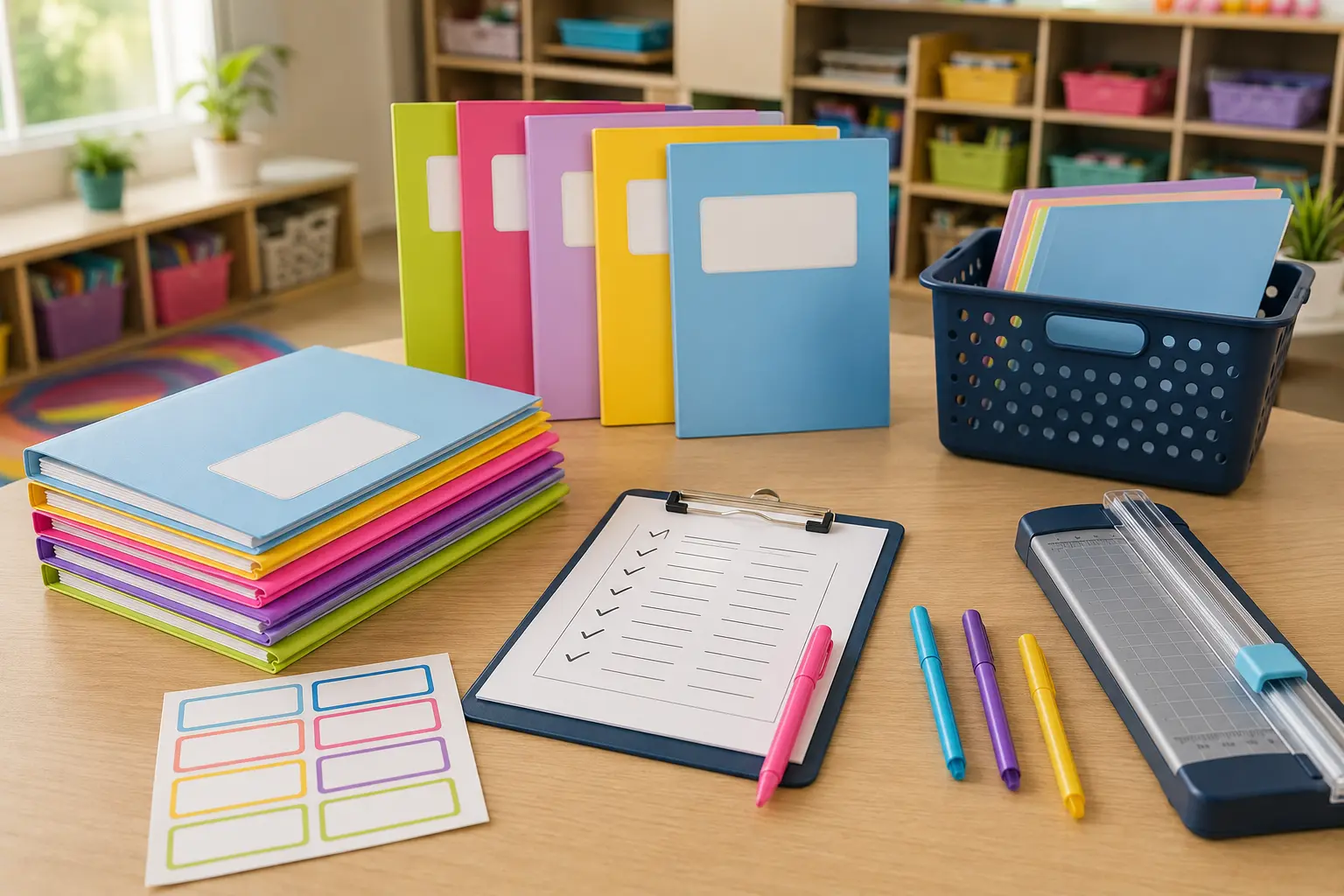
Folder prep becomes exhausting when naming, printing, labeling, and sorting happen in one long session. A repeatable checklist turns the work into small batches you can verify as you go.
Before you print
1. Confirm the final class roster
Use the most current roster you have, but expect changes. Keep a few blank folders and labels ready for late enrollments, name corrections, or replacements.
2. Choose one folder purpose
Decide whether the folder is for take-home communication, homework, unfinished work, or another specific routine. A folder with one clear job is easier for students and families to use correctly.
3. Lock the naming format
Choose first name, first name plus last initial, or the format required by your school. Use that same format on the cover, inside labels, class list, cubby, and any matching materials.
Build one complete sample first
Print and assemble one student folder before producing the class set. Check the name placement, print scale, pocket direction, label fit, and whether important information remains visible after the pages are inserted.
Batch the setup
4. Print covers and labels
Keep the roster beside you and mark each student only after every required piece has printed correctly. If your file uses Auto-Fill fields, confirm the matching fields updated before printing.
5. Assemble by task, not by student
Complete one action across the whole set: attach all covers, then all pocket labels, then add papers. Repeating the same motion is faster and makes missing pieces easier to notice.
6. Sort in classroom order
Alphabetical order works for distribution, while table groups or cubby order may work better for daily routines. Pick the order that matches how folders will actually move through your room.
Teach the system
Show students where the folder travels, which pocket families should check, and where returned papers go. Practice the routine before sending important forms.
Save next year’s starting point
Keep a blank master file, one assembled sample, and a short note about your paper, label settings, and folder brand. Next year, you can update the roster instead of rebuilding the system from memory.
Want the folder set ready faster?
Create ten coordinated folder covers for each student with editable and Auto-Fill options.
View the folder coversExplore more teacher tips →